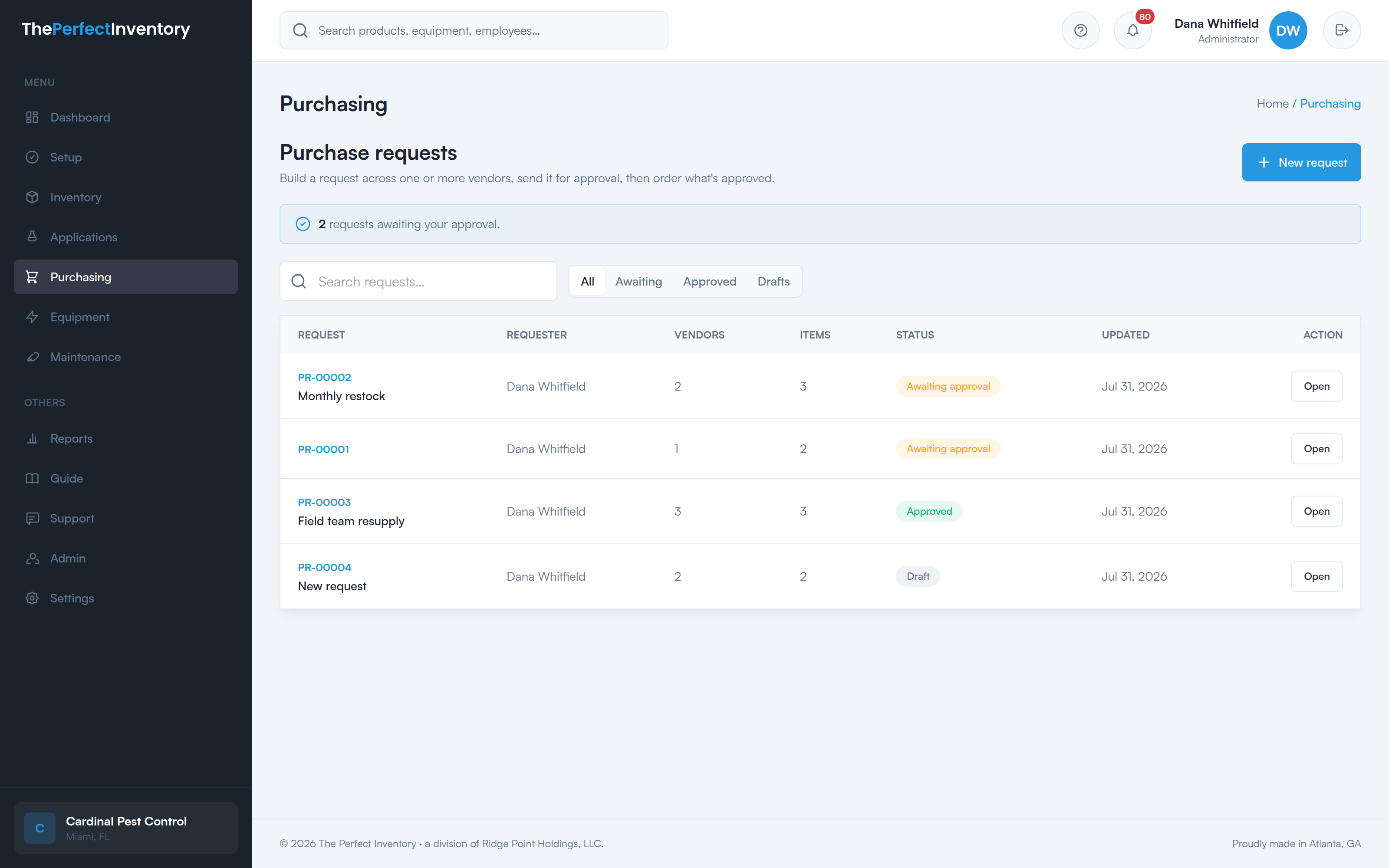
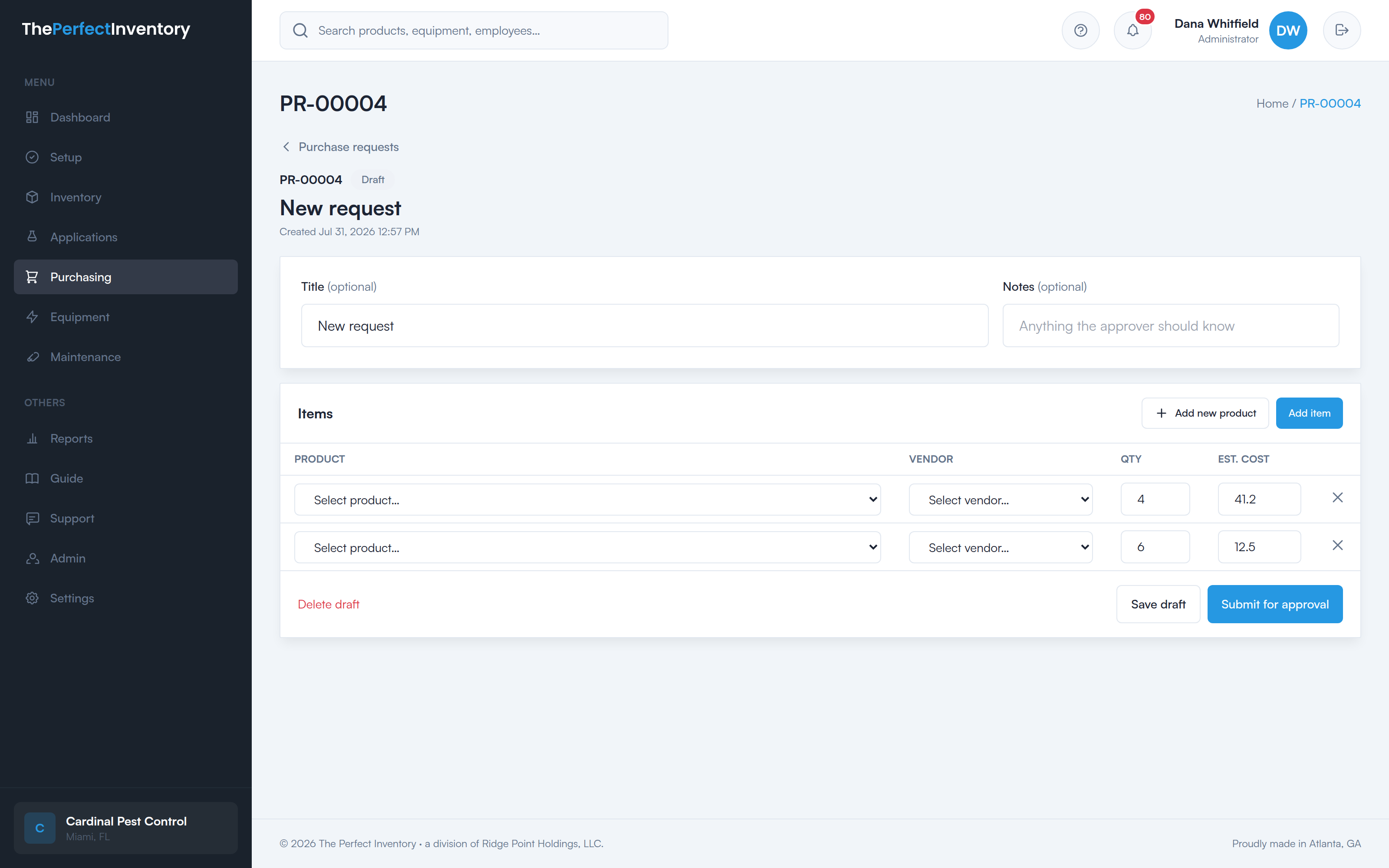
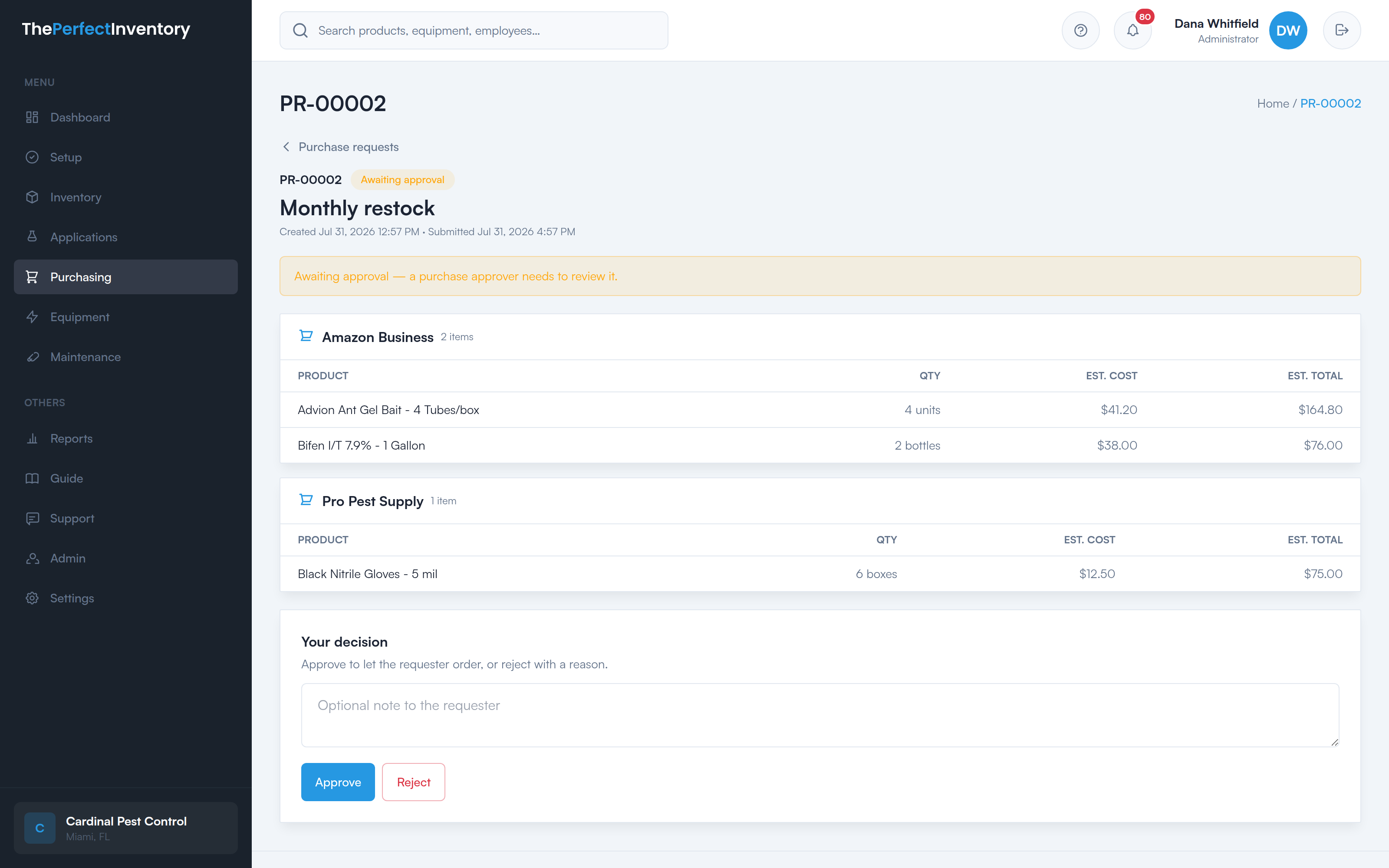
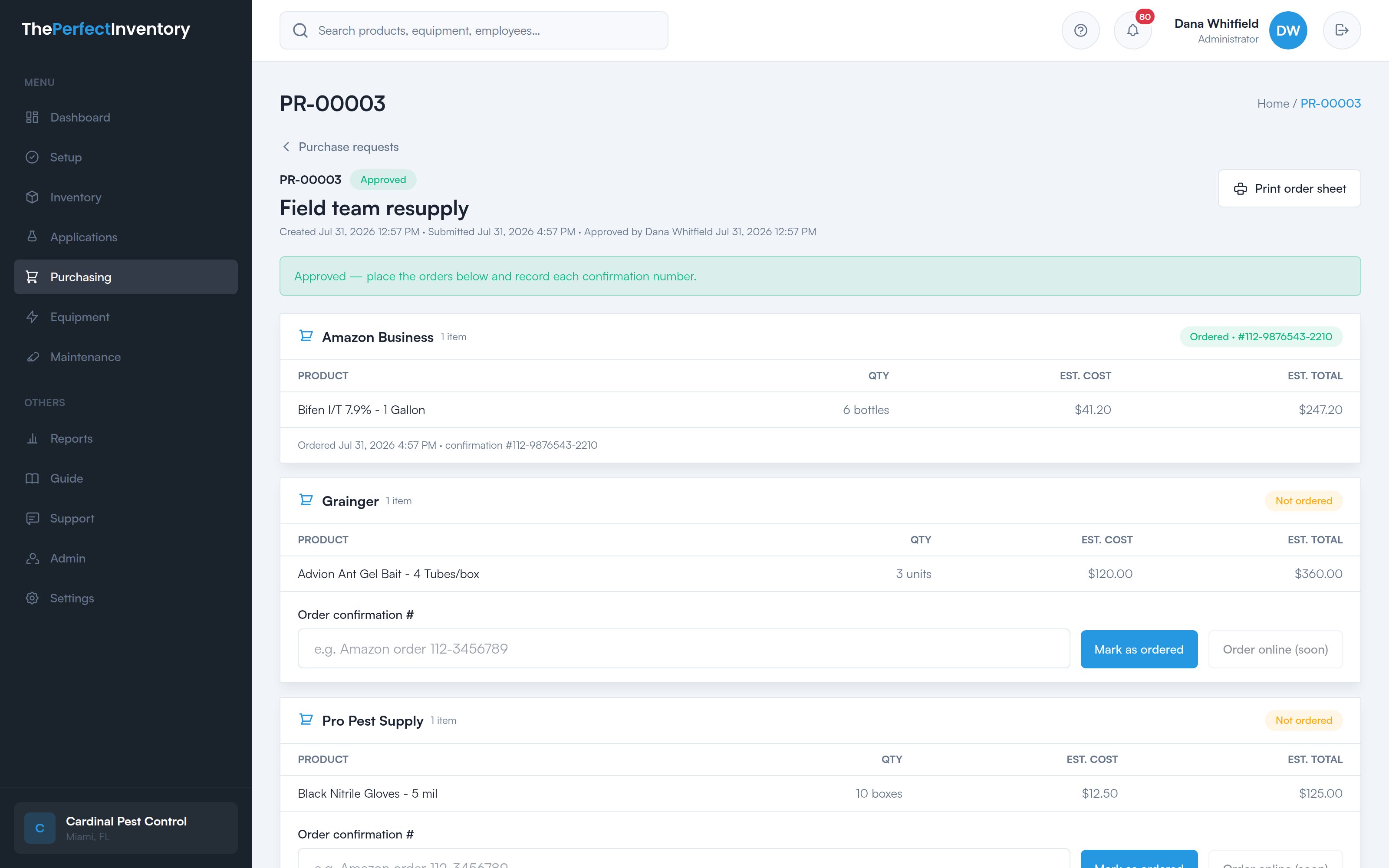
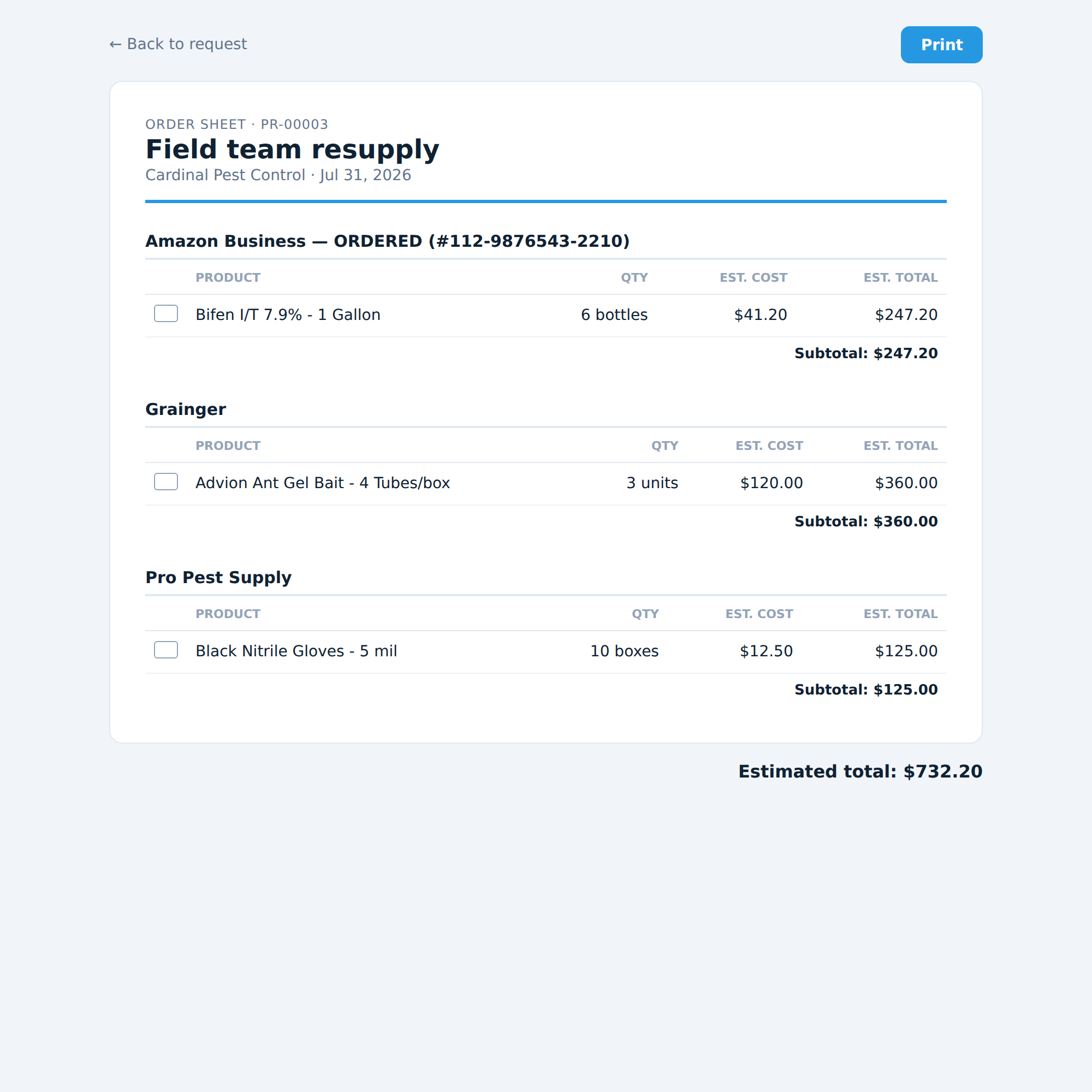
The system tells you what to reorder — accounting for what's already on order — and takes the order all the way through: numbered POs, a vendor email with a PDF, and receiving that updates your stock as the boxes land.
The reorder worklist. Tick the items you want and raise a purchase order from them.
Every product has a reorder point. The “needs ordering” worklist collects everything at or below it — and it subtracts what you already have on order, so you don't buy the same drum twice while the first one is still in a truck somewhere.
What you actually have on the shelf right now, per location.
Quantities already sitting on an open purchase order — netted off automatically.
The threshold you set for that product. Hit it and the item lands on the list.
A suggested quantity, in the box, ready for you to adjust before you commit.
Nothing gets ordered behind your back. The worklist is a recommendation, not an auto-order. A person selects the items and raises the PO — you stay in control of every dollar that leaves the building.
Open the worklist. Everything at or below its reorder point is there, already net of what’s on order.
Select the items and raise a purchase order. It takes your next PO number and auto-fills the vendor.
One click sends a branded PO with a secure link to view or download the PDF. Or print it.
Receive the whole order, or part of it now and the rest later. Inventory updates as items arrive.
Create, edit, and track purchase orders through five plain-English statuses. Filter the list by status, or search by PO number or vendor.
Your own PO numbering
Set a starting PO number and the system counts up from there. Numbers are sequential per company, so they slot straight into the books you already keep.
Vendor directory
Store each supplier once. New POs and PO emails auto-fill the vendor details, so nobody retypes an address at 7am.
Edit while it’s a draft
Add products, change quantities and unit costs, set the expected date, and leave notes or terms — then mark it ordered when you send it.
Open an order and the whole life cycle is right there — no hunting through menus, no re-keying it into a second system to send it.
Print / PDF
A clean PO with your logo and purchasing contact. No browser headers and footers.
Email PO
Sends a branded email with a secure link to view or download the PDF.
Mark ordered
Moves it out of draft once it’s away, and stamps the ordered date.
Receive items
Take in the full order or just what showed up. Stock updates on the spot.
Half the pallet turns up, the rest is backordered. That's normal — and it's why receiving is partial by default. Take in what actually arrived, and the order sits at partial until the balance lands.
Enter the quantities that showed up. The remainder stays open on the PO.
On-hand counts move the moment you receive, so the worklist stays honest.
Receiving is one of the actions written to the audit log, along with POs and emails.
POs done by hand and emailed as ad-hoc attachments have no numbering, no tracking, and no receiving. Here's what changes.
No more emergency buying
You see what’s low before a tech does, and you see it net of what’s already on order.
Your numbers, your brand
Sequential PO numbers that fit your books, and a PDF that carries your logo and purchasing contact.
Vendors get a proper PO
A branded email with a secure link to the PDF, with reply-to routed back to your purchasing department.
Stock stays accurate
Receiving feeds straight into on-hand counts — no separate spreadsheet to reconcile.
A 30-minute walkthrough of the dashboard, the reorder worklist, a purchase order, and the field portal — using your products, not a canned demo.